
New Security Application OTP+ Has Been Released!


VIEWS: 617
Hello everyone,
We have been offering free registration for years to protect our users' accounts. We have updated our AnyOTP application! With its renewed name and design, OTP+ is now much easier and more practical to use.
Below we share the steps you need to follow to use the OTP+ application in detail. With the new version, the previous The AnyOTP app and memberships will now be called 'Old Version'.
How to Register?
Step 1: https://otp.nttgame.com/ and log in with your account.
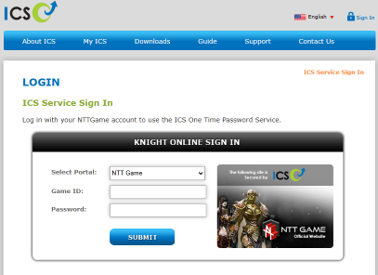
Step 2: In order to sign up for OTP+, Email and Cell Phone registrations must be completed in your account.
* Click to learn how to make email confirmation: [ICS Email Confirmation Procedures]
* Click to learn how to register Cell Phone: [Cell Phone Number Verification]
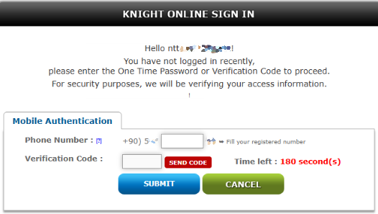
After adding a Cell Phone to your account, you may be asked to send a verification code to your phone number for security purposes when logging into the otp.nttgame.com address. On the page that opens, complete the missing part of your phone number and click the 'SEND CODE' button. Then, enter the 6-digit code sent via SMS within 180 seconds and press the 'SUBMIT' button.
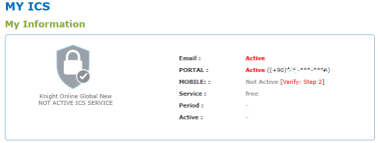
Step 3: After completing the Email and Cell Phone registration process, click on the red 'Verify: Step 2' link next to the ICS Mobile option on the MY ICS page.
You will see the synchronization screen with your Cell Phone information defined in your account. On this page Click the Sync Now button.
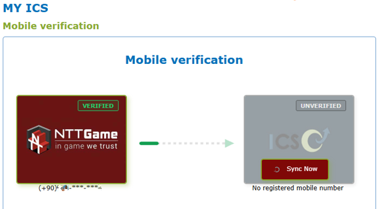
After clicking the 'SEND CODE' button in the mobile confirmation window that opens, enter the 6-digit SMS code sent to your registered phone within 180 seconds and click 'Sync Now' button.
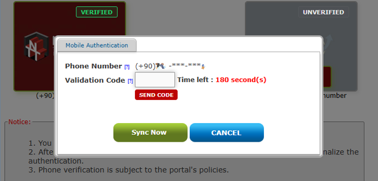
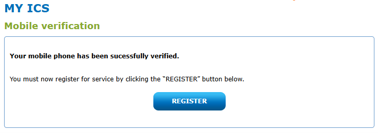
After completing the mobile confirmation, you will see the synchronization confirmation screen. You can complete the OTP+ registration process by clicking the 'REGISTER' button here.
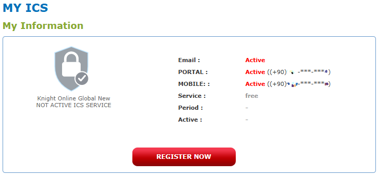
In case you do not complete the registration on this screen, you can complete the registration process at any time by using the 'REGISTER NOW' button in the MY ICS section when you log in to the OTP website.
When you click on the 'REGISTER' or 'REGISTER NOW' buttons on the synchronization process or MY ICS pages, you will see the page where you can select the OTP version.
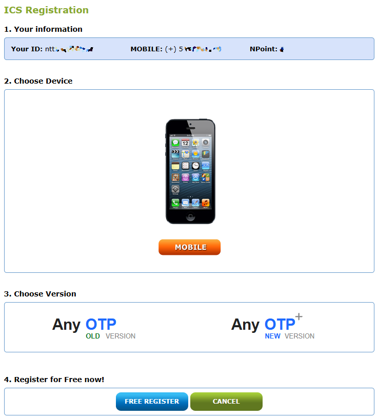
After selecting the Any OTP+ New Version option, you will complete your OTP+ registration process by clicking the 'FREE REGISTER' button.
When you complete your OTP+ registration, the OTP ID and Activation Code information you will use in the application installation will be sent to your phone as an SMS.
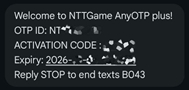
Note: The OTP ID and Activation Code are valid for 10 days. Codes not used within this period will expire and you will need to request a new code.
* To learn how to request new OTP ID & Activation code: [Request OTP ID & Activation Code]
How to Use?
Step 1: Complete the OTP+ App by visiting the store page for the specific device model you are using for installation or updating of the existing AnyOTP app. Play Store(Android) | OTP+ iOS TestFlight(Beta)
When you open the application after installation or update, you will see the 'Confirm' button.
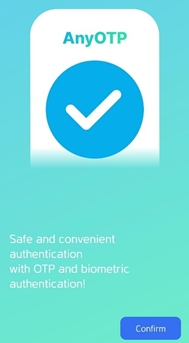
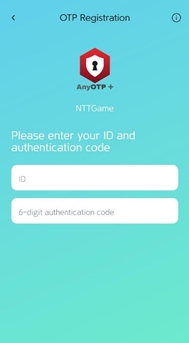
“After pressing the 'Confirm' button, enter your OTP ID and 6-digit Activation code.
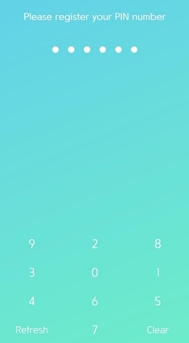
Step 2: When opening the app, set your 6-digit PIN code that you will use for security purposes and re-enter your PIN code for verification.
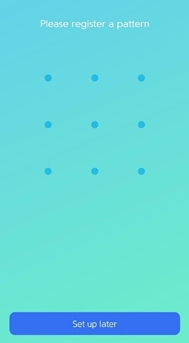
Step 3: After setting the PIN code; confirmation screens will open that allow you to log in with Fingerprint, Face ID or Screen Pattern, which are new features of the application. If you wish, you can skip these steps by clicking the 'Set up later' button, and you can configure your biometric or pattern login settings later within the application.
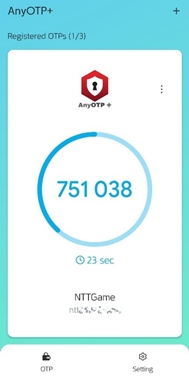
Congratulations! OTP+ application on your mobile device; You have successfully made it ready for use in your portal and game entries.
Next Steps & Related Guides
You can access all the guide topics you may need for your account and OTP+ system from the link below:
[ICS & OTP+] Account Security System and Directory Links
Safety Reminder: NTTGame employees or forum administrators will not request your account password, OTP ID or Activation Code from you under any circumstances. Never share the OTP ID and Activation codes sent to your phone via SMS with third parties or official-looking fake (phishing) sites.
Problem Statement: If you get an error during setup, receiving an SMS code, or creating a PIN, [NTTGame Support System (Ticket)] You can send tickets to the relevant category or contact us under this topic.
We wish you pleasant and safe games!
NTTGame


